Looking to change your KALEOZ username and store name? You can easily update it by following the steps below.
A. Suitable for All Users
-
Step 1: Access Your Control Panel
Log in to your KALEOZ account, click on your Profile Icon, and select Control Panel.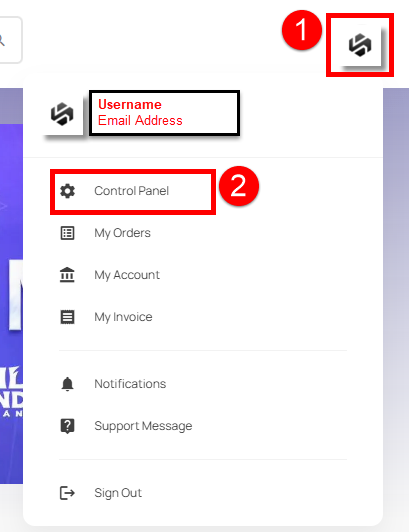
-
Step 2: Manage Your User Profile
Click on the Manage User Profile Icon next to your username.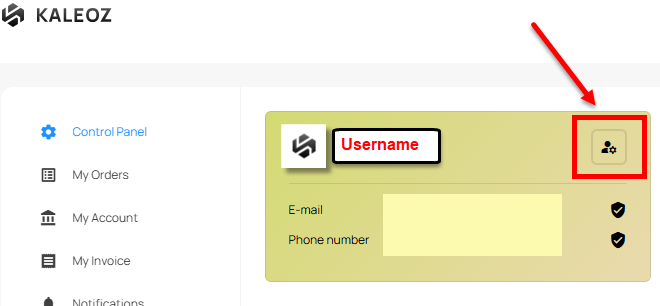
-
Step 3: Update Your Username
Under the Your username field, remove your existing username and enter your new preferred username. Once done, click Save to apply the changes.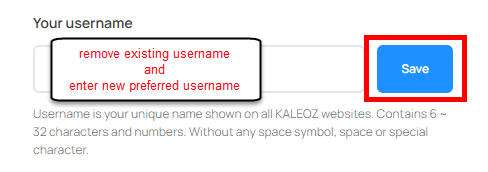
B. For Sellers Only (Sellers can also update their store name via the Seller Portal)
-
Step 1: Access Your Store Settings
Log in to the Seller Portal, navigate to Store, and select My Store.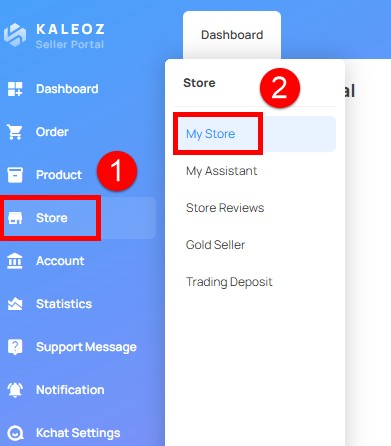
-
Step 2: Update Your Store Name
Under Store Information, locate the Store Name field and enter your new preferred store name. Once done, click Save to apply the changes.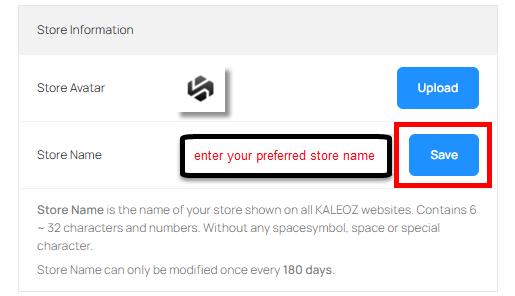
Note:
▪Your username is your unique identifier displayed across all KALEOZ websites.
▪It must be 6–32 characters long and can only contain letters and numbers. Spaces and special characters are not allowed.
▪It can only be changed once every 180 days.