In the Kaleoz Seller Portal, sellers can create and list new products by following a series of guided steps.
Steps to Create and List Products
-
Log in to the Kaleoz Seller Portal.

-
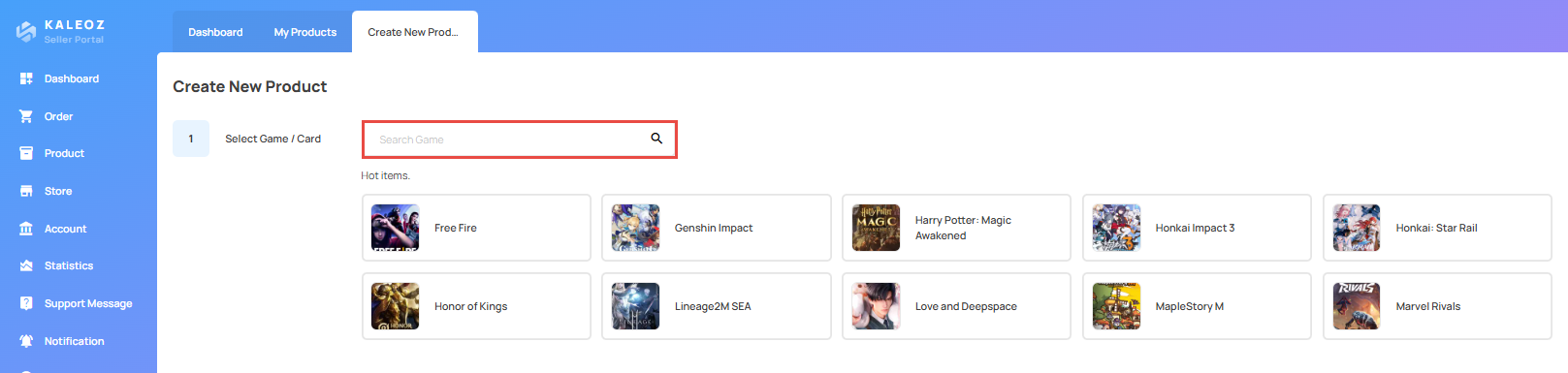
Go to the Product page and click Create New Product.

-
Select the game you want to list.
-
Choose the appropriate category. Each game offers different options:
- Top Up: UID top-up. Denominations are pre-set.
- Game Offers: Custom products. Multiple items can be listed.
- Currency: In-game currency. Units are fixed.
-
According to the category, follow the corresponding steps below:
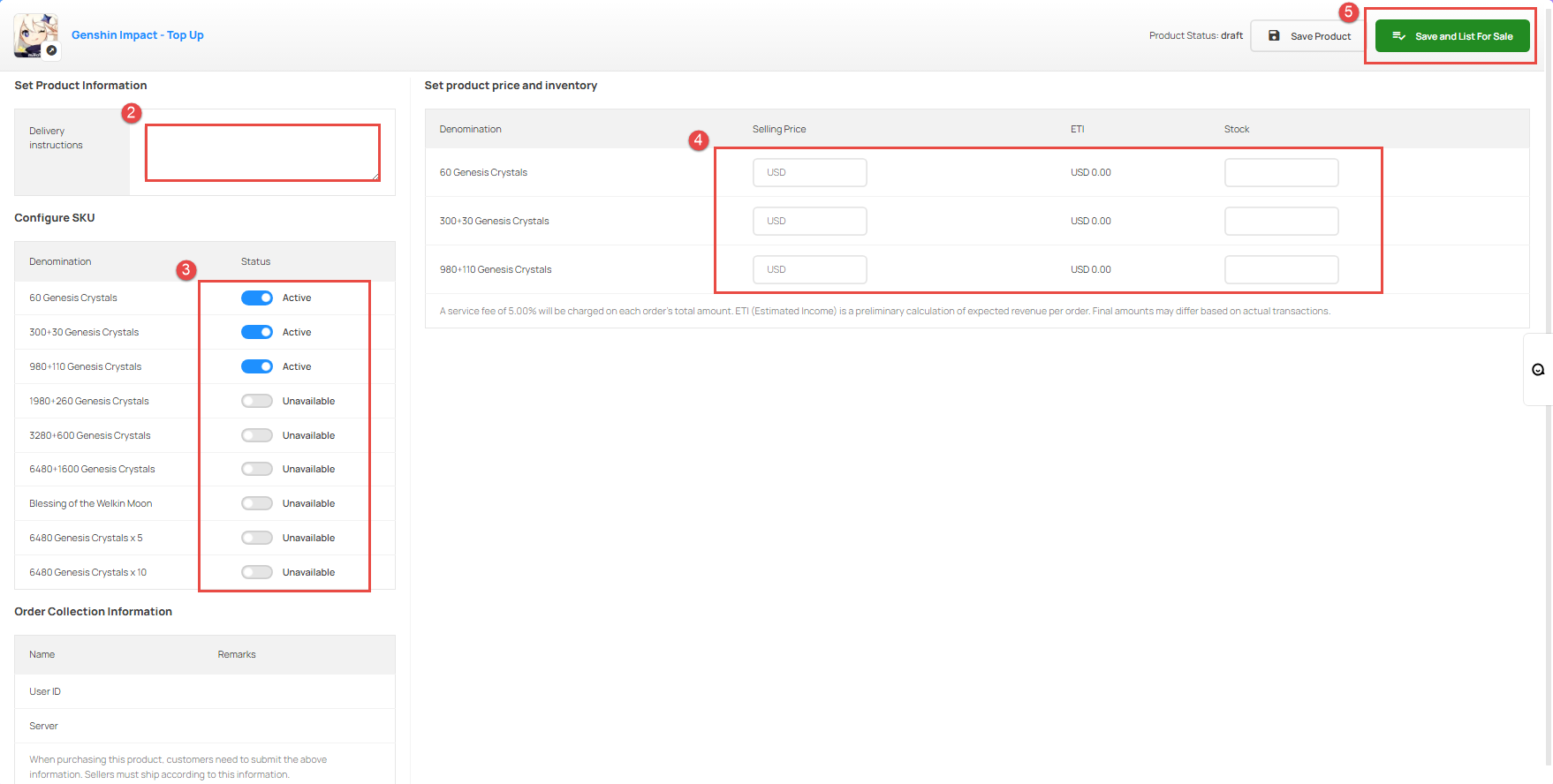
Category: Top Up
- Select Top Up as the category, then click Save draft and continue editing product.
- Enter Delivery Instructions (maximum 200 characters).
- Pre-set denominations will appear. Toggle the switch to activate the ones you want to sell.
- For each selected denomination, set the selling price and stock quantity.
- Once everything is ready, list your product on KALEOZ.
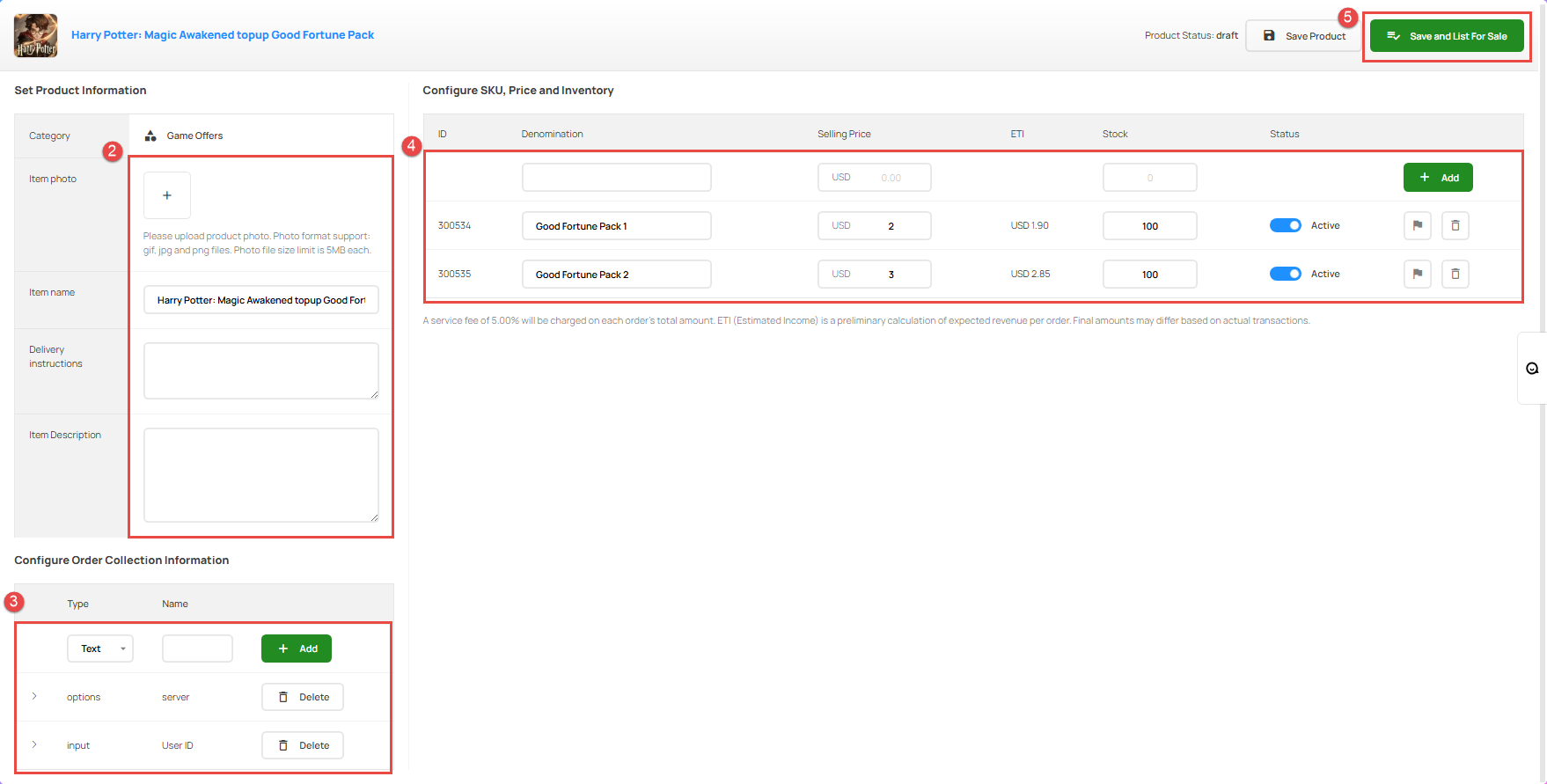
Category: Game Offers
- Select Game Offers as the category, enter your product title, then click Save draft and continue editing product.
- Set product information, including:
- Item photo
- Delivery instructions
- Item description
- Set the required information that customers must provide when placing an order.
- Text: Customers manually enter details (e.g., UID, character name).
- Menu: Provide preset options (e.g., server, platform). Expand the menu to add values, one per line.
- Enter denomination, selling price, and stock, then click Add. Toggle the switch to set it as Active.
- Multiple denominations can be added.
- The flag icon indicates which price appears in search results.
- Once everything is ready, list your product on KALEOZ.
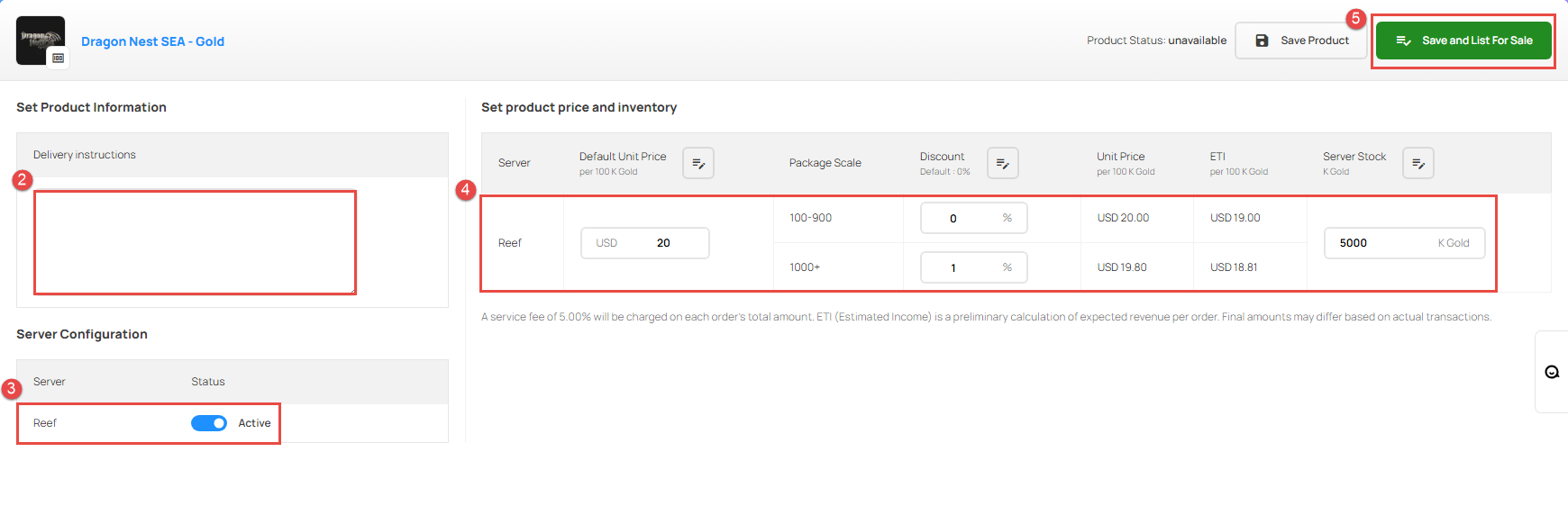
Category: Currency
- Select Currency, then click Save draft and continue editing product.
- Enter delivery instructions.
- A list of servers will be displayed. Toggle the switch to activate the servers you want to offer.
- Set product price and inventory.
- Units are pre-set, check carefully when setting prices.
- Discounts can be offered based on package ranges. Enter “0” if no discount is offered.
- Once everything is ready, list your product on KALEOZ.
If you have any questions, please contact our Customer Support team.