While Your Store Is Closed
- All of your product listings will become inactive.
- Buyers will not be able to place new orders.
- You can still log in and access your KALEOZ account as usual.
You can choose either of the following options:
- Manually open or close your store.
- Schedule Store Hours to automatically open and close your store based on your business hours.
Option 1: Manually Open or Close Your Store
Step 1
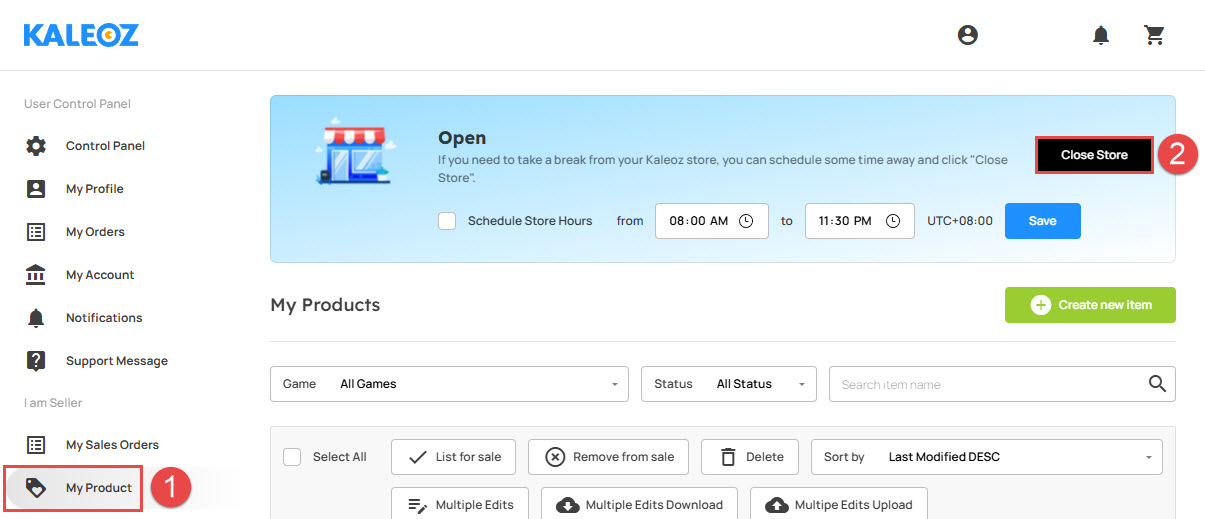
Log in to your KALEOZ account and go to My Product.
Step 2
Click Close Store to temporarily close your store.
Step 3
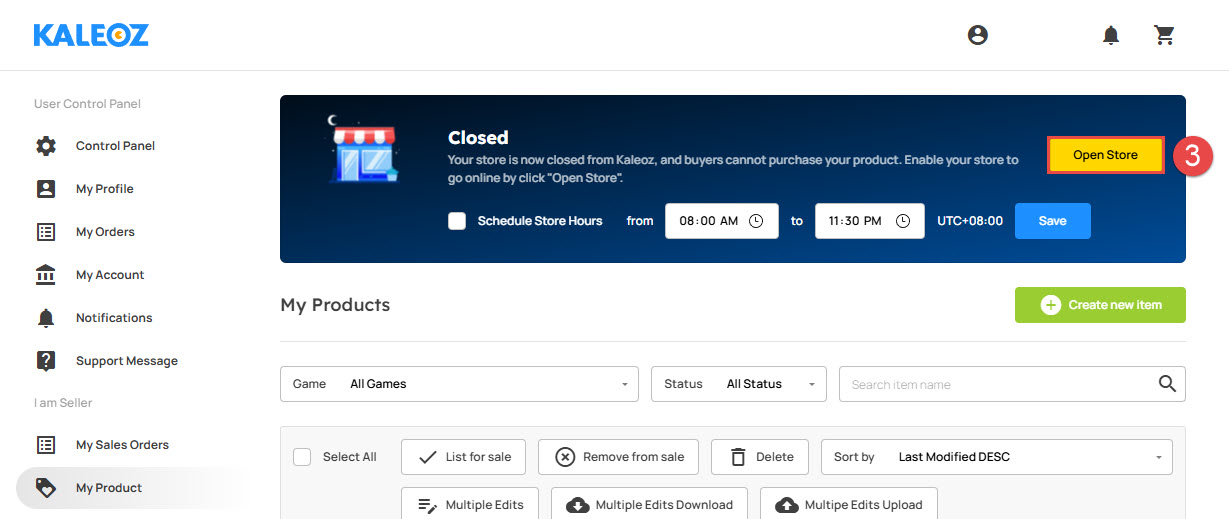
When you're ready to resume selling, click Open Store at any time.
Option 2: Schedule Your Store Hours
Step 1
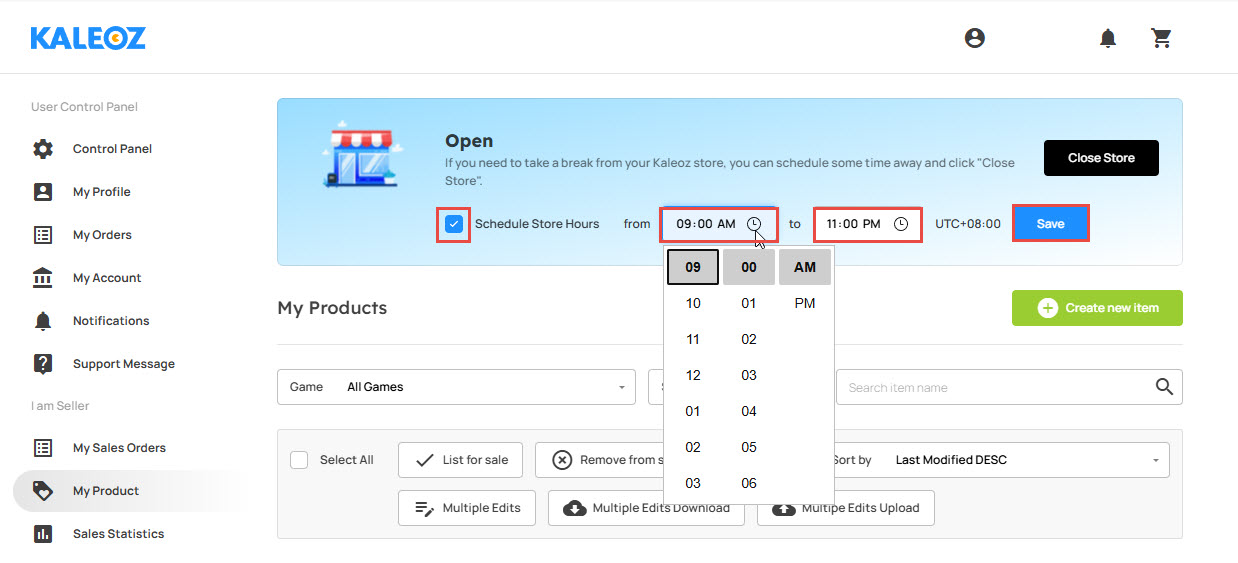
Enable Schedule Store Hours.
Step 2
Set your business operating hours according to UTC+08:00, then click Save.
Your store will automatically open and close according to the schedule you set.
Reminder
If a buyer places an order before you close your store, they may still complete the payment within 1 hour after the store is closed. An unpaid order will automatically expire after 1 hour.
Therefore, we recommend closing your store slightly earlier than your actual business closing time to allow sufficient time for any pending payments to expire.
Please make use of the Close Store feature whenever you are unavailable to fulfil orders. Keeping your store closed during your absence helps prevent buyer disappointment and ensures that customers can only place orders when you are available to process them promptly.